Time-Exact Deliverables
Broadcast, advertising, and platform requirements are non-negotiable. A commercial slot is exactly 30 seconds — not 29 or 31. Only manual numeric input guarantees frame-accurate duration matching.
Don't settle for preset slow-motion or generic fast-forward. Type any exact speed between 0.5x and 15x — like 0.67x to make a 90-second clip fit a 60-second slot — and export a clean MP4 with no watermark.
Target Duration ÷ Source Duration = Your Speed Valuee.g. 60s ÷ 90s = 0.667xDecimal precision · Live preview · No watermark · Instant MP4
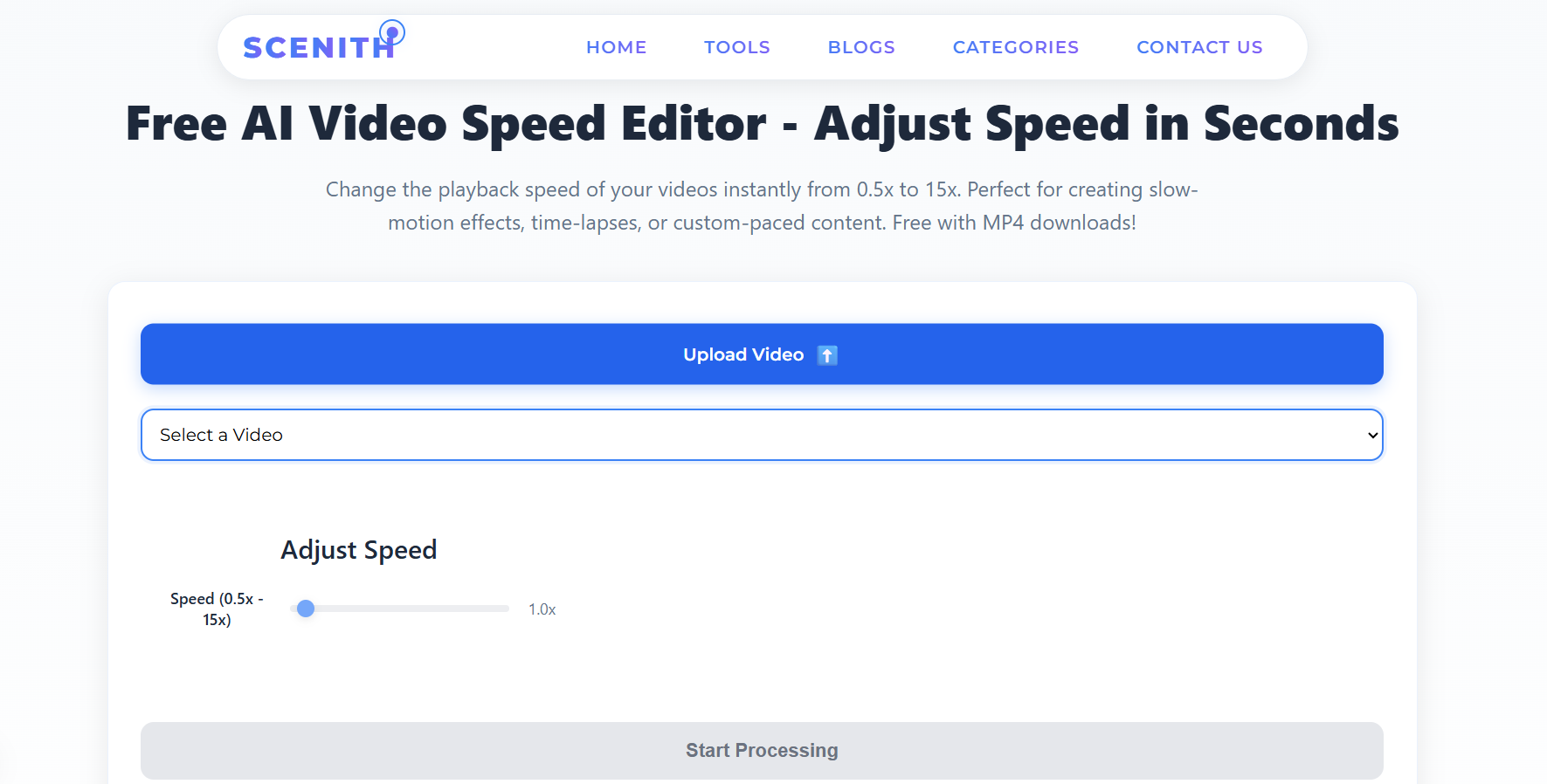
Preset-based speed tools are built for casual creators. Professional results demand the ability to input an exact number — not pick the nearest option from a dropdown.
Broadcast, advertising, and platform requirements are non-negotiable. A commercial slot is exactly 30 seconds — not 29 or 31. Only manual numeric input guarantees frame-accurate duration matching.
Video editors syncing footage to music need to match exact BPM ratios. A 104 BPM source synced to a 96 BPM track requires exactly 0.923x — a value no preset can provide.
Converting 60fps footage shot for slow-motion to a 24fps timeline requires exactly 0.4x speed. Any approximation creates judder or incorrect playback duration.
Experienced editors don't pick a speed and hope for the best. They set 1.2x, preview, decide it needs to be 1.15x, adjust, preview again. Manual input enables this rapid iteration loop.
Whether you're a precision-first professional or a creator who just wants more control than a preset offers, the tool adapts to your workflow.
Type any speed value between 0.5x and 15x directly. No rounding, no snapping — 1.37x is just as valid as 2x.
Slide smoothly across the full speed range and watch your video update in real-time before committing to export.
Jump instantly to tested speed presets (0.5x, 0.75x, 1.25x, 1.5x, 2x, 4x, 8x) crafted for specific use cases.
See exactly how your speed-adjusted video looks and sounds before exporting. No surprises, no wasted renders.
Our processor automatically corrects audio pitch so voices and music stay natural at any speed — no chipmunk effects.
Manually choose export resolution from 144p to 4K. Full control over output quality, not just speed.
Every manual speed modification starts with a simple formula. Here are the six most common real-world calculations, solved and ready to input.
Works for any unit: seconds, minutes, or hours. Result below 1 = slower. Result above 1 = faster.
Make a 2-minute clip fit a 60-second Reel
Speed up a 45-min lecture to watch in 30 min
Match video tempo to 98 BPM from 104 BPM source
Compress 8 hours of construction to 3 minutes
Slow a 60fps clip to feel like 24fps slow-mo
Stretch a 10-second clip to 16 seconds for dramatic effect
Manual speed control isn't a power-user niche — it's the standard workflow for anyone with a specific output requirement.
A frame rate mismatch between 24fps and 60fps source needs precise 0.4x correction, not a rough "slow-motion" preset. Manual input is the only way to get this right.
Lecture recordings that need to be 18% faster to hit a platform time limit without sounding rushed. A slider preset of 1.25x overshoots — 1.18x is the sweet spot.
Analyzing a 0.3-second golf swing frame-by-frame requires 0.25x or slower. No preset covers this; only a manual numeric input gets you there.
Syncing a 101 BPM video clip to a 96 BPM track requires a 0.95x speed reduction. That's not a 'slow-motion' — it's a precise tempo correction only manual input supports.
14 hours of construction footage needs to compress into exactly 4.2 minutes for a broadcast segment. Manual calculation: 14hr × 60 ÷ 4.2min = 200x. Choose the closest quality setting and export.
Clients specify exact deliverable specs: '20% slower than source for the reveal shot.' That's 0.8x — not a preset, not approximate. Manual entry is the professional standard.
Drop in MP4, MOV, AVI, MKV, WebM, FLV or MPEG. Source file is encrypted and stored only for your session — never shared, auto-deleted after processing.
Use our speed formula guide (target duration ÷ source duration = speed multiplier) or enter your value directly. The tool accepts any value from 0.5 to 15 with two decimal places of precision.
Play back the speed-adjusted preview directly in your browser. Scrub through the timeline, check the audio, and confirm it's exactly right before triggering the export job.
Select export resolution from 144p to 4K depending on your plan. Professional exports stay at source quality — no automatic compression or lossy re-encoding unless you choose a lower resolution.
Click 'Start Processing' and your video renders server-side using FFmpeg with hardware acceleration. Download a clean, watermark-free MP4 in under 3 minutes for most files.
Not all speed editors support precise manual input. Here's how the leading tools compare on what matters most to precision-focused creators.
| Feature | Scenith | CapCut | InShot | Adobe Premiere |
|---|---|---|---|---|
| Precision | ✅ Exact decimal input (0.01x steps) | ⚠️ Limited presets only | ⚠️ Mobile presets only | ✅ Timeline keyframes (complex) |
| Speed Formula Guide | ✅ Built-in calculator logic | ❌ None | ❌ None | ❌ None |
| Live Preview | ✅ Real-time browser preview | ✅ Yes | ✅ Yes | ✅ Yes |
| Audio Pitch Correction | ✅ Automatic at all speeds | ⚠️ Manual toggle | ⚠️ Manual toggle | ⚠️ Requires plugin |
| Free & No Watermark | ✅ Always | ⚠️ Watermark on free tier | ⚠️ Watermark on free tier | ✅ Paid only |
| Export Quality Choice | ✅ 144p – 4K | ⚠️ 1080p max (free) | ⚠️ 1080p max | ✅ Any (complex setup) |
| Works on Mobile | ✅ Any browser | ✅ App only | ✅ App only | ❌ Desktop only |
| Processing Speed | ✅ ~2 min server-side | ✅ Fast | ✅ Fast | ❌ 10–30 min local render |
Manual video speed modification is the process of specifying an exact numeric multiplier to apply to a video's playback rate. Unlike automatic tools that offer preset options (slow-motion, normal, fast-forward), a manual modifier accepts any decimal value — 0.5x, 0.92x, 1.37x, 6.5x — and applies it with mathematical precision to every frame of the source video.
The underlying technology (FFmpeg's setpts and atempo filters) is the same regardless of whether the interface is manual or preset-based. The difference is entirely in the precision of the input value passed to the processor.
Under the hood, all video speed modification works by altering the presentation timestamps (PTS) of each frame. A 1.5x speed change means frames are presented 1.5x faster — the 30th frame arrives at what would have been the 20th frame's timestamp. FFmpeg's setpts=PTS/1.5 filter handles this mathematically.
Manual input matters here because FFmpeg accepts any floating point multiplier. There is no technical reason to round to a "preset" value — the processor handles 1.337x just as cleanly as 1.5x. The only reason tools offer presets is for UX simplicity. When precision is your priority, bypass the UX layer and input the mathematically correct value directly.
Audio handling adds complexity: FFmpeg's atempo filter supports speed changes from 0.5x to 2x natively. For more extreme values, the filter chains multiple passes (e.g., 4x = 2x × 2x). Scenith handles this chaining automatically regardless of the speed value you input.
Precision. Not Presets.
30,000+ creators already use Scenith for precise speed control. Free to use, no watermark, no account required to preview.
Open Manual Speed Modifier — FreeManual speed modification means you input the exact speed multiplier yourself — whether that's 0.5x, 1.37x, or 8.25x — rather than selecting a fixed preset like 'slow-motion' or 'fast forward'. You control the precise numeric value, calculated for your specific use case.
You can enter any value between 0.5x and 15x with up to two decimal places of precision. 1.35x, 0.72x, 6.5x — all valid. The tool uses the exact value you input for processing, not a rounded approximation.
The formula is simple: divide your target duration by your source duration. Want a 90-second video to fit in 60 seconds? 60 ÷ 90 = 0.667x. Need to make a 5-minute clip play in 3 minutes? 3 ÷ 5 = 0.6x. Input that precise value for frame-accurate results.
Scenith's processor automatically applies pitch correction at any speed. At extreme values (above 3x or below 0.5x), audio quality naturally degrades regardless of the tool used — in these cases we recommend replacing the audio track with music or a new voiceover for professional output.
The tool processes two decimal places of precision, meaning 0.5x through 15.0x in 0.01x increments. You can input 0.67x, 1.33x, 7.25x and the export will reflect your exact specification.
Automatic tools apply a fixed algorithmic speed based on content analysis. Manual tools give you full numeric control — essential when you have a precise time requirement, a specific BPM match, or a frame rate correction need. Use manual when the exact value matters.
Yes. After uploading and setting your speed value, the built-in preview player applies your speed setting in real-time via the browser's native video API. You hear the pitch-corrected audio and see the exact pacing before triggering the server-side export.
Upload MP4, MOV, AVI, MKV, WebM, MPEG, and FLV. Output is always a clean H.264 MP4 at your selected resolution. Aspect ratio, color profile, and subtitle tracks are preserved through the speed processing pipeline.
Presets are for guessing. Manual input is for professionals. Whether it's 0.667x, 1.33x, or 7.5x — Scenith processes your exact value and delivers a clean MP4 in minutes.
Modify Video Speed Manually — FreeAlso explore: Video Speed Modifier · Speed for YouTube Shorts · All AI Video Tools · Plans & Pricing